Guides
Load settings: versions, streamproof and cleaning
What the cogwheel next to Load Skript does: which GTA version to pick, what streamproof hides Skript from, and what Erase System Traces is for.

100k Nov 5, 2026

Where to find them
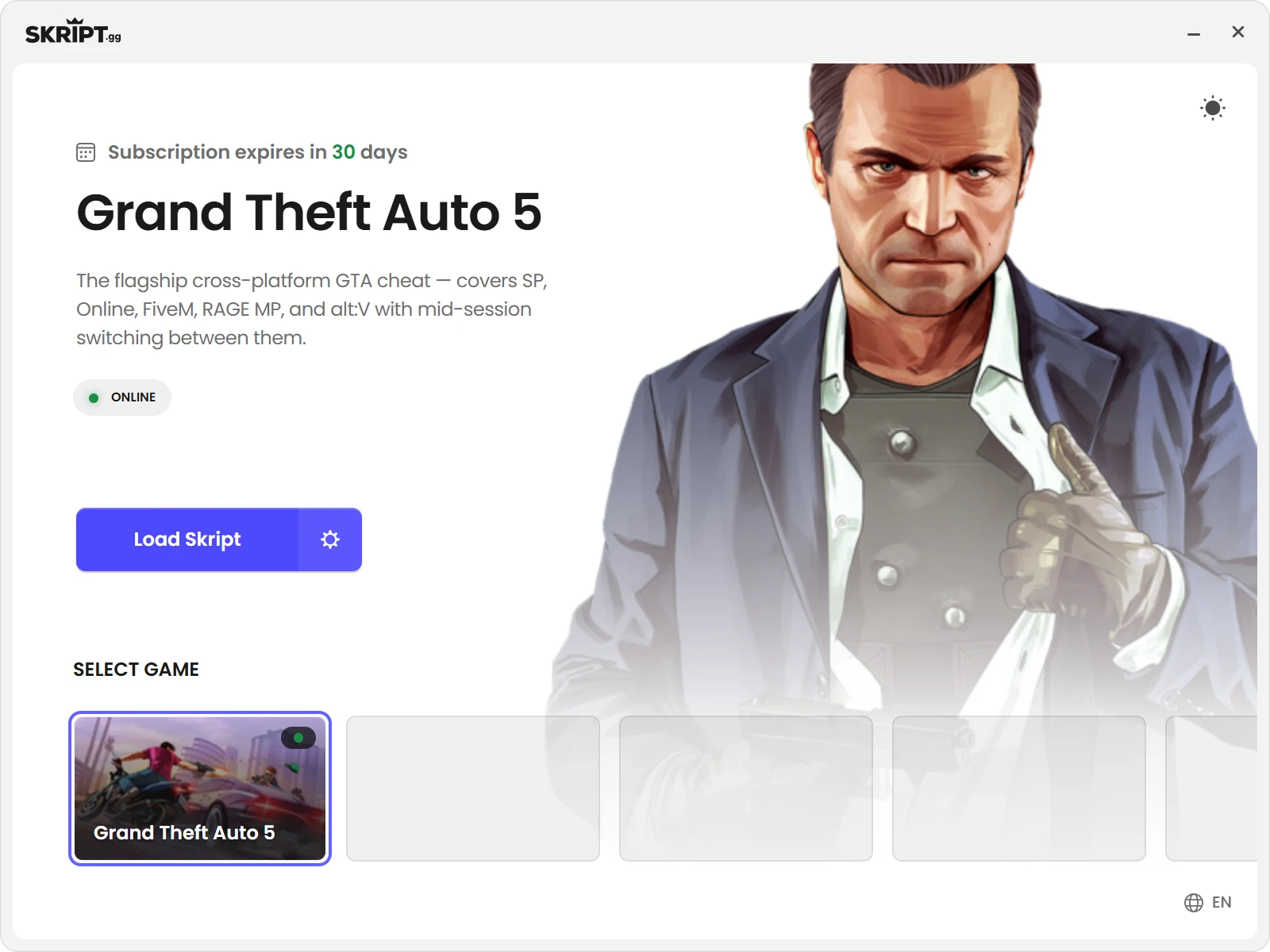
Open the loader and pick Grand Theft Auto 5 under Select game. Next to Load Skript is a cogwheel: click it to open Load Settings. Choose your options before clicking Load Skript.
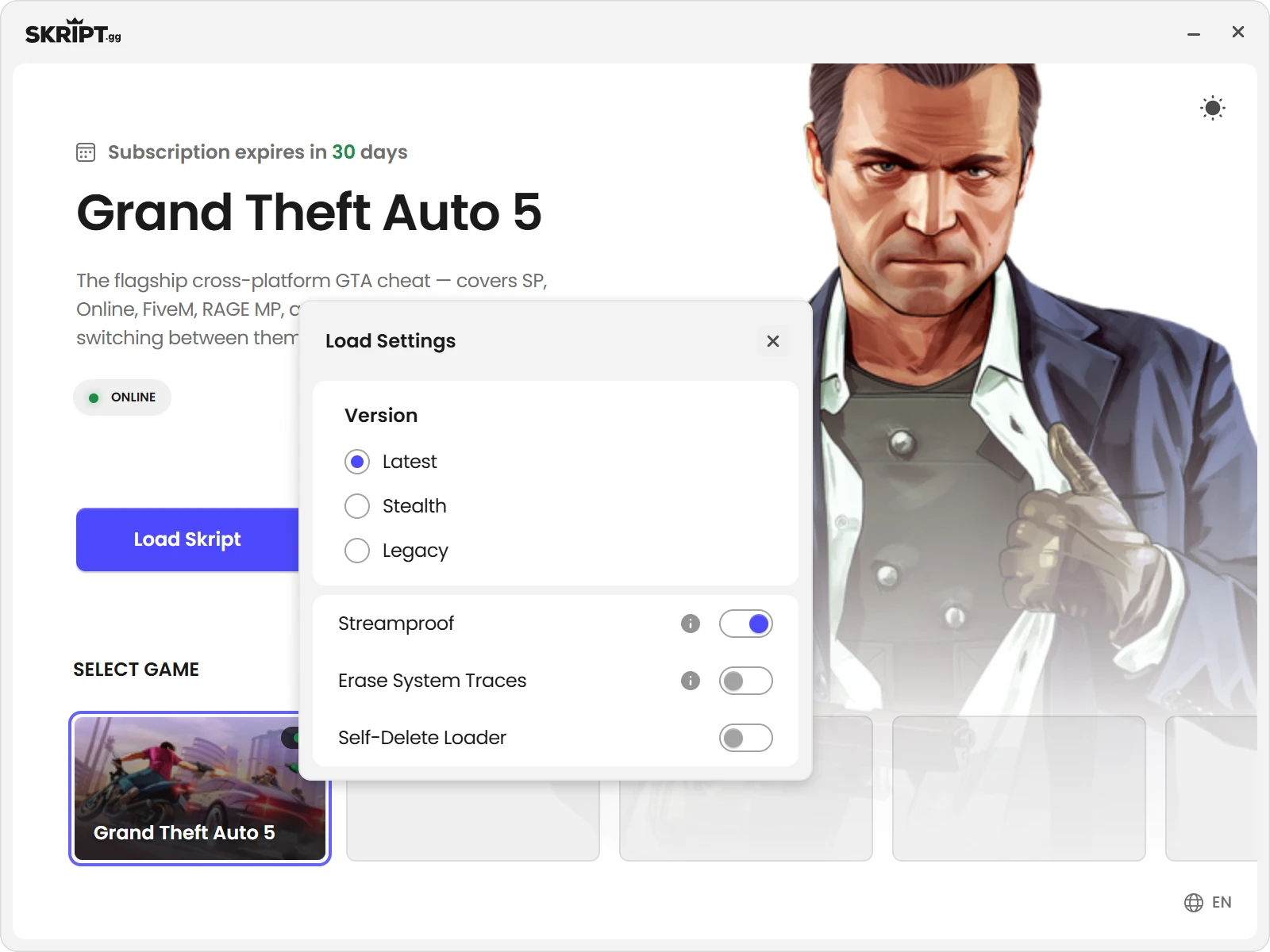

Version
GTA comes in three versions. Use Latest. The other two are still there for people who want them, but we don't recommend either.
Latest
Recommended
Skript as it is today. Every feature, every update and every fix lands here, and it's the only version with streamproof.
Stealth
Not recommended
The older version Latest grew out of. It's safe to use and fairly stable, but it falls further behind Latest on features and updates with every release. We keep it around because some long-time users prefer what they're used to.
Legacy
Not recommended
Our very first version. It's the least stable of the three and the easiest to detect.
Streamproof
Streamproof decides whether recordings can see Skript. With it on, the menu and visuals are on your screen but not in your recordings or streams, whatever software you record with. Turn it off and they get recorded like anything else on screen.
That includes the recorders built into your graphics driver, which capture your whole desktop rather than a single window:
NVIDIA
ShadowPlay and Instant Replay in the NVIDIA App
AMD
Recording and Instant Replay in AMD Adrenalin
Streamproof is on by default and only available on Latest. Pick Stealth or Legacy and the switch disappears.
Erase System Traces
Erase System Traces helps clear what the loader leaves behind on your PC. It's in beta, off by default, and doesn't guarantee you'll pass a PC check. Trace cleaning and the Self-Delete Loader option are covered in its own guide.